User manual
WikiParti is the world’s first rich media based social eBook net-working service platform. It is a multi-purpose communication
platform, used especially for education purposes. WikiParti en-ables MULTI-WAY DISTRIBUTION and STRONG INTERACTION be-tween content creators and readers. People create their rich me-dia content in simple steps and publish it instantly. We use three
intuitive methods (voice, hand gesture and image) for communi-cation and creation. One of our strongest points is the ability to
turn creator’s content into a ‘social playground’. People can com-ment on a creator’s content using voice, image, rich text and
The world first rich media social networking platform
more. WikiParti provides a self-growing content environment us-ing crowdsourcing mechanisms. With the WikiParti platform, any-body can publish their eBook simply and directly. Anybody can be a creator or distributor on our new, innovative, content creation and operation platform.
With WikiParti, teachers can transform a paper content into an in-teractive digital content instantly and efficiently.
Even children can play in WikiParti like as playing with glue, scis-sors and crayon on the paper in the real world.
- WikiParti is a compound word consisting of “Wiki + Participat-ing”. WikiParti aims to provide a new innovative interactive
eBook platform for a blended learning environment. - WikiBook:
The term WikiBook represents an interactive eBook that is cre-ated on the WikiParti platform. - WikiBook Canvas:
TheWikiBook Canvas is the eachbackground area and basic ‘workspace’ of a WikiBook page. It has no size limit. Any image of any size can be loaded on to the canvas, but an extremely large image may affect system performance.
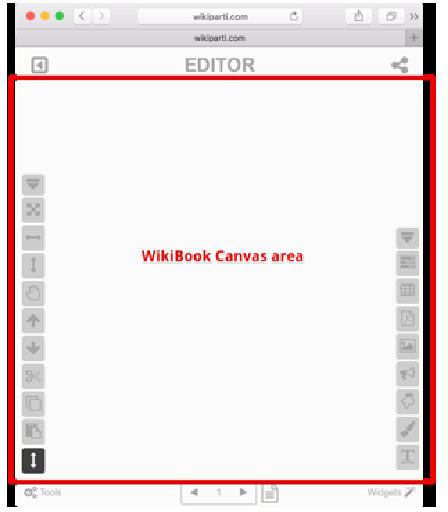
A widget is a particular software device, used to add an action
or function to an eBook page. Currently, we have 8 different
widgets available. With these, it is possible to create your own
WikiBook and various interactive digital features. The full use of
each widget is explained in Part #1 > Basic UI composition >
Widgets.
You can find all the widgets at the bottom right corner of the App. Widgets are related to creating something on a WikiBook.
- Single Choice widget:
Used for a test or a survey. - Multi Choice widget:
Also used for a test or a survey. - PDF Upload widget:
This widget enables users to upload and transform a PDF file into WikiBook canvas. - Image widget:
Used for uploading an image onto a WikiParti canvas or handing an image object already uploaded to the canvas. On a mobile browser, it allows users to activate the cam-era function of a mobile device. - Add voice widget:
With this widget, users can add their own voice sound clips to canvas. Unfortunately, this feature is only available for PC, Mac and Android apps. It does not currently work
on a regular mobile browser. - Digital Finger Button widget:
This widget enables uses to use to make a part of an im-age that can be clicked or touched. Users trigger a digital action by touching or clicking on a selected widget. (e.g. HyperLink, Playing a Youtube video, etc.) - Hand Drawing widget:
This widget’s principle use is to mark on a specific part of a WikiBook page. However, it can also be used as a sim-ple drawing tool. - Multiline text widget:
This widget’s used for adding text to a WikiBook.
The tools are functions used for controlling the canvas and widgets.
Among other functions, users can zoom in/out, fit the page to
the screen, edit/copy/paste/delete a widget on the WikiBook
canvas. The full use of each Tool is explained in Part#1 > Basic
UI composition > Tools.
User will find ‘Page Controller’ at the centre of the bottom toolbar. Users can set each page property, add/insert/delete a
page and move to a specific page. The full use of each Page
control is explained in Part#1 > Basic UI composition > Page
controller.