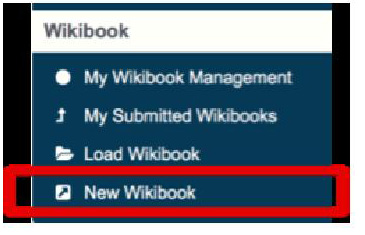
After login
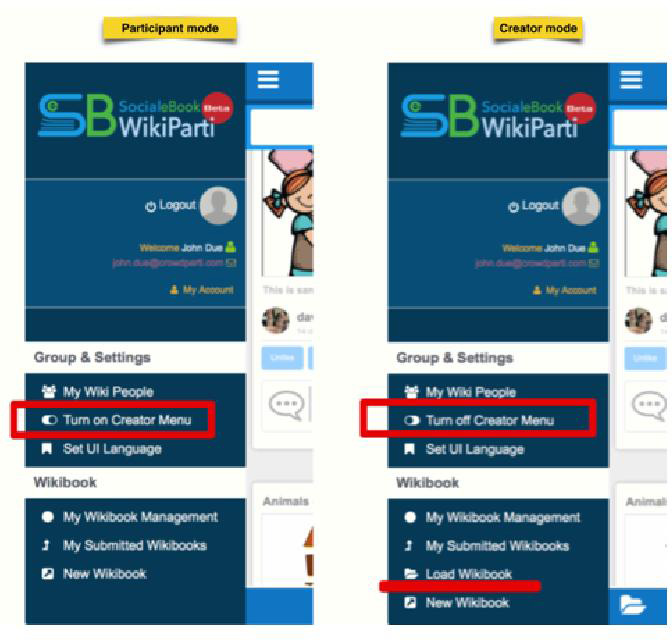
After login, you will be in the default ‘Participant’ mode. If you want to create your own WikiBook, you need to turn on the ‘Cre-ator’ mode. About the User mode, you can find the full of use in the Part #2 > User mode.
4.1 My Account

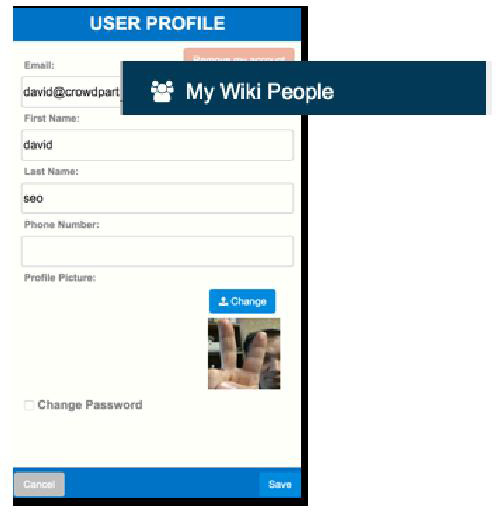
After successfully logging in, you can find many additional submenus in the sliding popup menu dialog. Just below the login user information, you will see the ‘My Account’ menu.
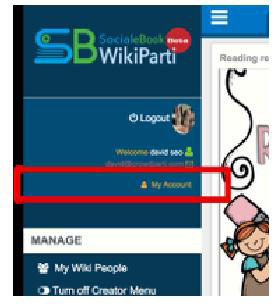
In the ‘My Ac-count’ menu page, you can change your profile information and manage your password.
If you want to delete your WikiParti user account you can do so on this page.
4.2 My Wiki People
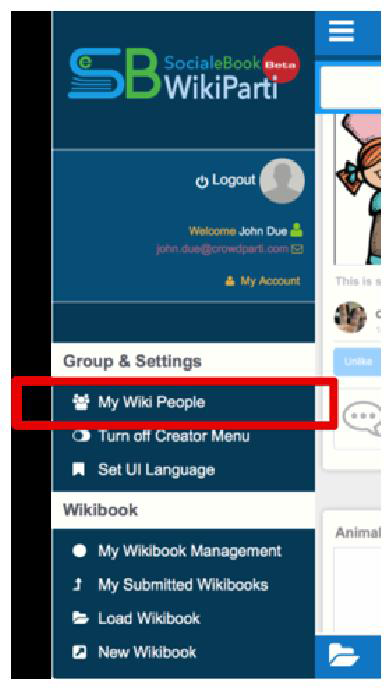
The ‘My Wiki People’ menu is for managing a user’s private so- cial network. One of WikiPar- ti’s strong points is supporting ‘CLOSED SO-CIAL NETWORK- ING’. So, every user can create his/her private social networks for diverse pur-pose.
WikiParti’s main purpose of use is COLLABORA- TION with other users or RE- CREATION of a WikiBook al- ready shared by an existing user.
Managing private social networks in WikiParti is very important.
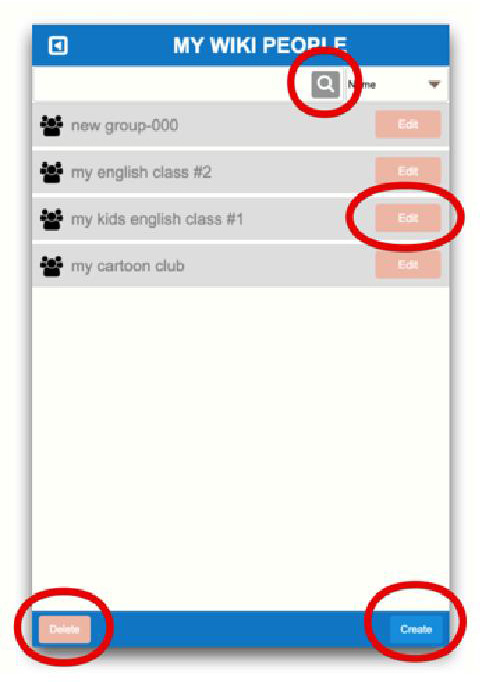
In the ‘My Wiki People’ page, every user can create/edit/delete their own private Wiki People network group.
These ‘My Wiki People’ lists will be used when the user wants to share a WikiBook with specific private user group(s).
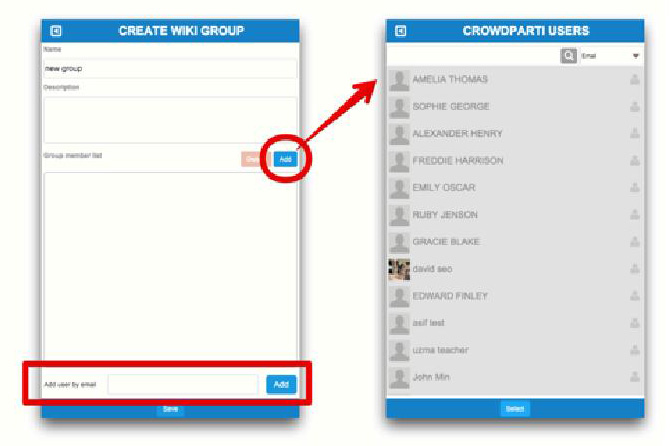
When a user wants to create a new Wiki group, the user can select and collect people from the whole WikiParti user list or add new users using their email address.
4.3. Turning the Creator menu on/off
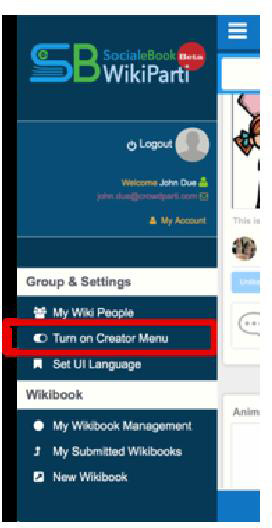
This is the switch to change a user’s mode while using WikiParti. This function gives users a very different ability within WikiPar-ti.
The default user mode is ‘Participant’. So, if you are seeing ‘Turn on Creator Menu’ in the left sliding menu, it means your current mode is ‘Participant’ mode. Therefore, if you are seeing ‘Turn off Cre-ator Menu’ in the sub menu list, it means you are in creator mode.

Depending on your user mode, your capabilities are totally differ-ent. User Mode, we will discussed further in Part #2: Basic Use > User mode in detail.
All of your settings will be saved to your username, so the next time you login to WikiParti, your preference will be remain the same.
4.4. Set UI Language
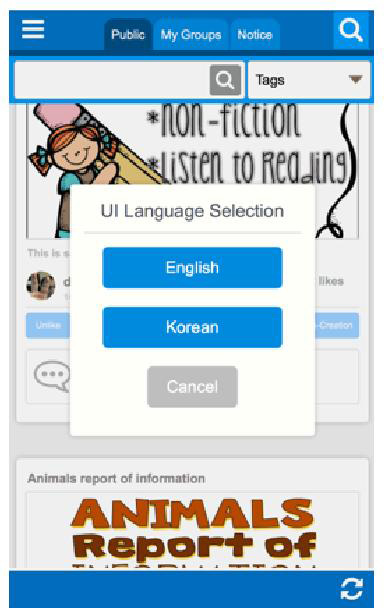
The ‘Set UI Language’ menu changes User interface language. Currently, English and Korean are supported.
4.5. My WikiBook Management
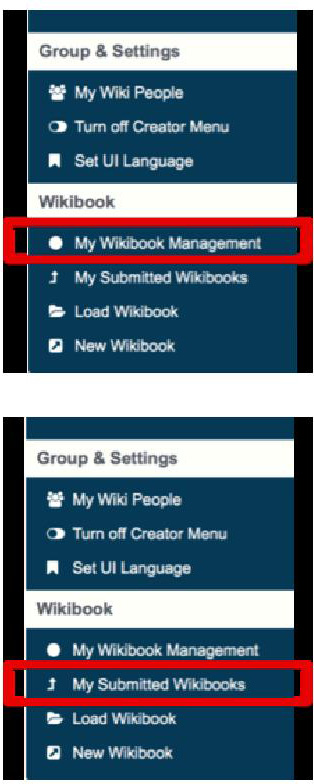
My WikiBook Management is for man-aging all your WikiBook creation.
Here you can ‘delete’ and ‘re-create’ any of your previously made content.
** Notice, WikiParti allows the Wiki-Book creator(author) to delete a Wik-iBook but does not allow modifica-tion or editing of the original file.
4.6. My Submitted WikiBooks
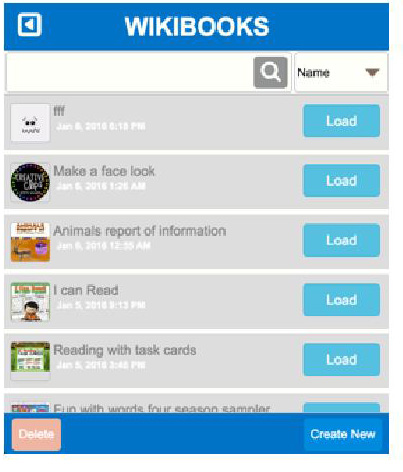
’In the ‘My Submitted WikiBooks’, you can manage all the Wiki-Books that you have previously submitted. Additionally, you can use the special feature ‘SUBMIT’.
This ‘submit’ feature enables you to submit WikiBooks for exami-nation or surveys. This ‘Submit’ feature will be discussed later in detail.
4.7. Load WikiBook
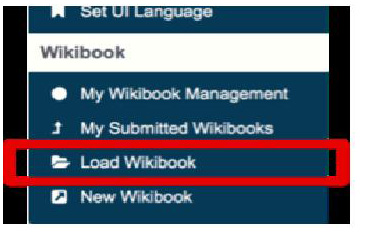
Load WikiBook will show you a list of your previously created and saved Wikibooks list.
4.8. New WikiBook
‘New WikiBook’ will open a new Wiki-Book canvas in edit mode. With this function, a user can create a new Wiki-Book.