Tools
The Tools is the name of the collection of each functions available in WikiBook Canvas. You will find the menu in the bottom left cor-ner of all WikiBook canvas screens ( view mode, participant mode and creator mode). It’s on the left side of the main bottom tool bar.
Currently, we provide 10 different tools for handling a WikiBook page.
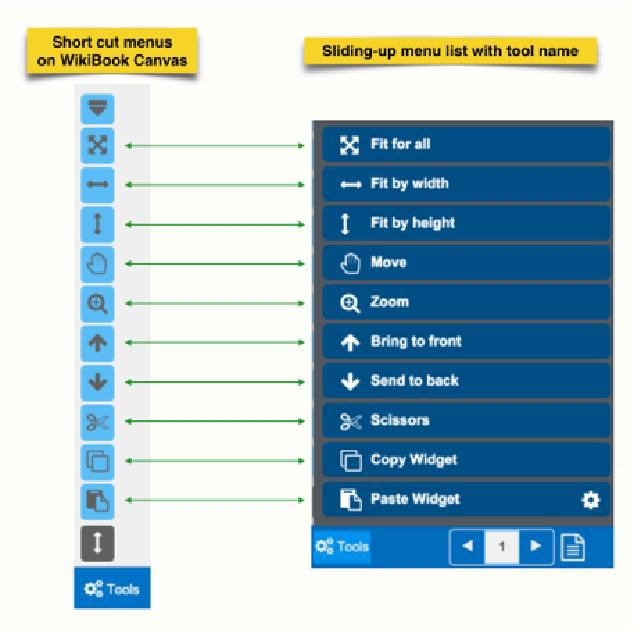
6.1. Fit to Page
This is a pre-defined zoom function. Selecting this will fit the entire page content into the given screen size.
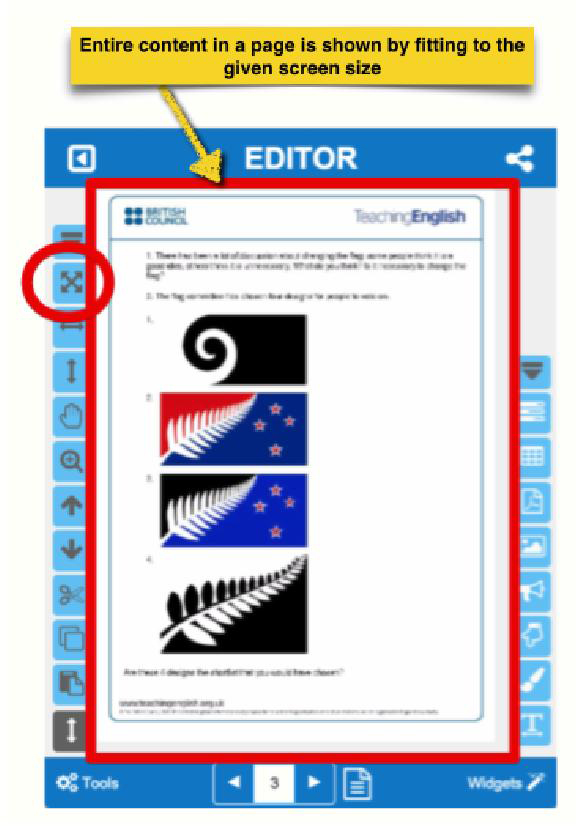
6.2. Fit to Width
This pre-defined zoom function will fit the page content to the current screen width.
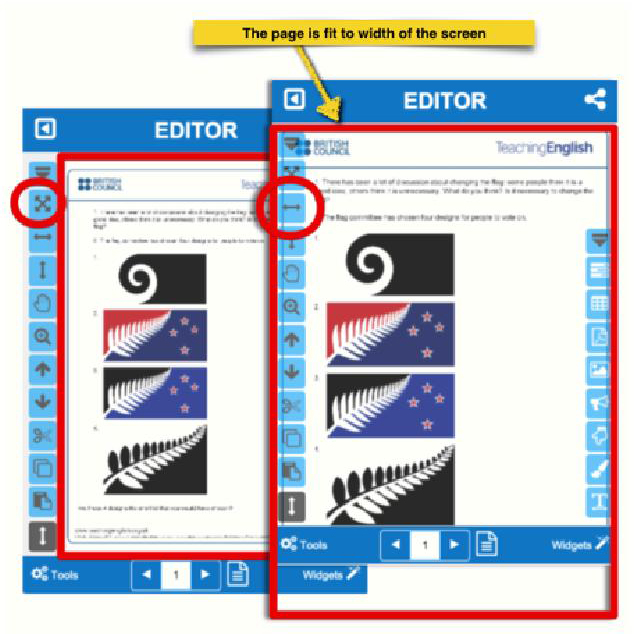
6.3. Fit to Height
This pre-defined zoom will fit the page content to the screen height.
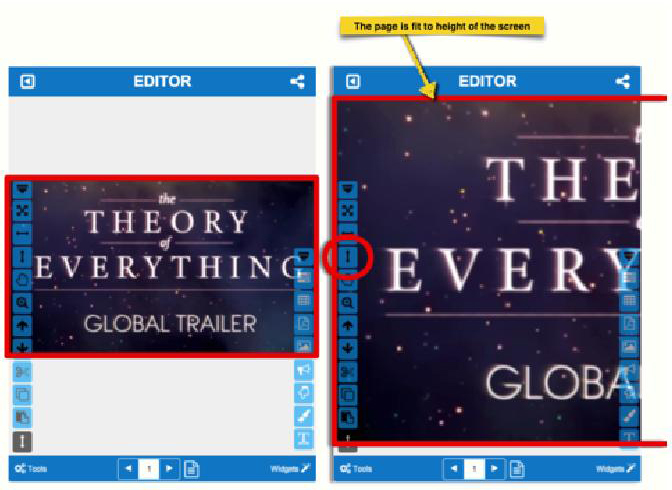
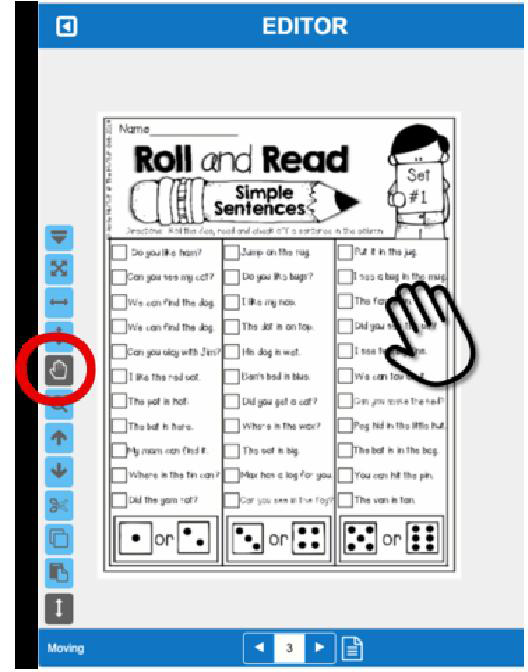
6.4. Move
Users can move the entire content of WikiBook page without loos-ing the position of each widget.
** NOTICE: If you just move without using this tool, you could negatively alter your entire content.
6.5. Bring to Front
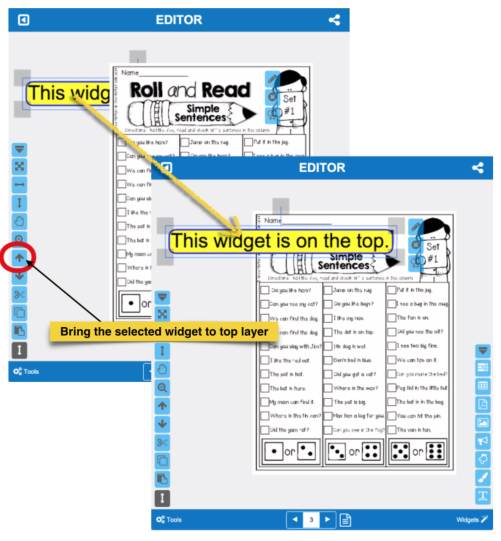
With ‘Bring to Front’, users can bring a specific widget on the top layer.
** NOTICE: If you want to set a digital action to a specific widget, the widget must on the top layer of the WikiBook page, otherwise the action might not work properly.
6.6. Send to Back
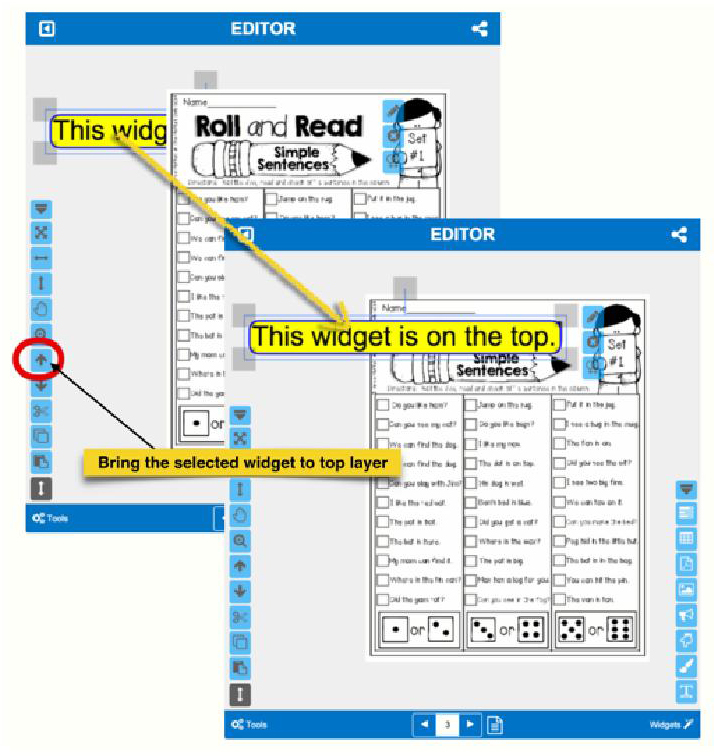
With ‘Send to Back’, users can send a selected widget to the bot-tom layer of the current WikiBook page. Only when a widget is on the top layer on the current canvas(WikiBook page), the widget will react to user’s actions( a mouse clicking, dragging or finger touching, etc.)
6.7. Scissors
Scissors is very useful tool for both creators and participants. With this tool, users can take a screen shot of a specific part of the cur-rent screen. This is very different from copying a widget. Actually this tool grabs a part of screen and creates a new image widget with the captured image.
This tool has the two different type of scissors mode, rectangle shape mode and free shape mode. And it has the continuous op-eration option. With this option, you can cut many time at once.
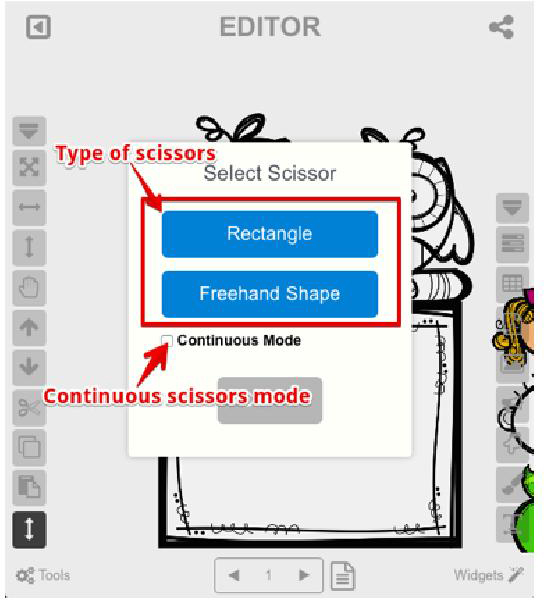
A.Rectangle mode.
With this mode, user selects an area by dragging their mouse or finger on the screen. Then a quadrangle screen captured image created on the area the user selected.
B.free shape.
With this option, users drag the pointer with the left mouse button clicked or by dragging their finger on the screen. The area user takes will become an image widget.
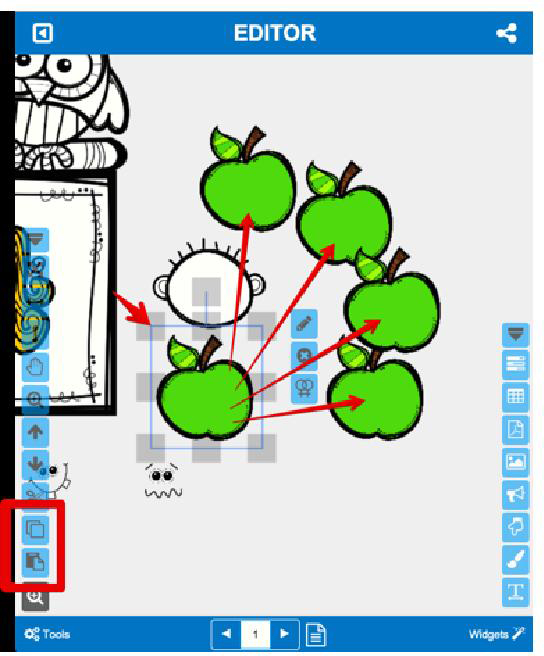
6.8. Copy Widget
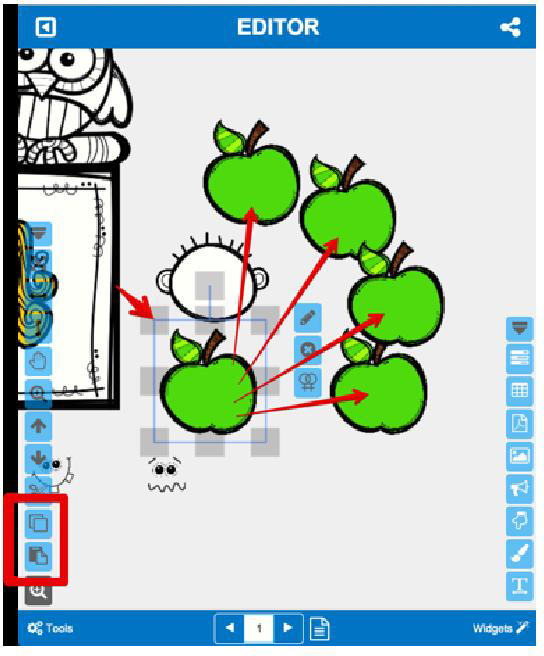
With the ‘Copy Widget’ tool, you can copy any type of widget on the screen( on the current WikiBook page). One strong point of this ‘Copy Widget’ tool is that you can copy a widget from a spe-cific page and paste it to other pages as many time as you want.
6.9. Paste Widget
The ‘Paste Widget’ is the paired with the ‘Copy Widget’. User can paste the widget that is saved in the clipboard of WikiBook any-time before he/she leaves the current edit mode.
Please refer the screen shot of Copy Widget, above.
6.10. Mouse Wheel Tool
The ‘Mouse wheel’ tool supports mouse wheel scrolling. On mo-bile browsers, user can use two fingers for zoom in/out and dragging finger with ‘Move’ tool for moving the entire content.
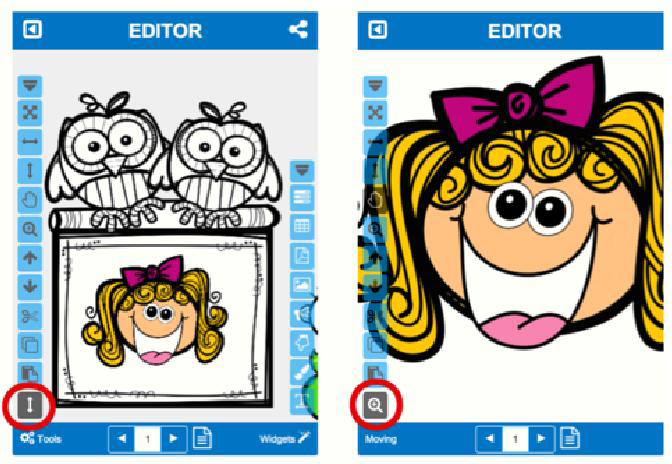
A.Scroll mode.
When the ‘Scroll mode’ is active, rolling mouse wheel will
scroll the page up/down or left to right. The scroll direction is
determined automatically by the current page setting.
B.Zoom mode.
When the ‘Zoom mode’ is active, the mouse wheel will zoom
in/out.