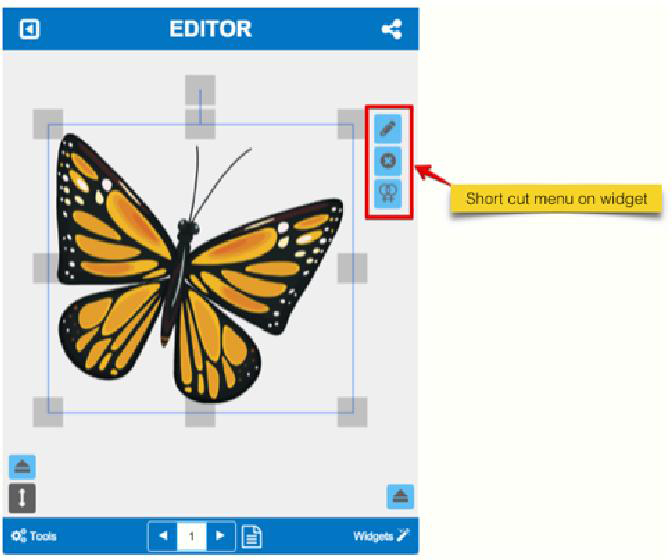
For helping your intuitive working on a widget, we provide short cut buttons for each widget.
When you click a widget in an edit mode, you will see those short cut buttons on the right side of the widget. With these short cut buttons, you can edit theproperty of a widget, delete a widget or make a copy of the widget.
A. Edit Widget (Property) short cut button
The ‘Edit widget’ (Property) short cut button works differently for each type of widget.
- For Image widget:
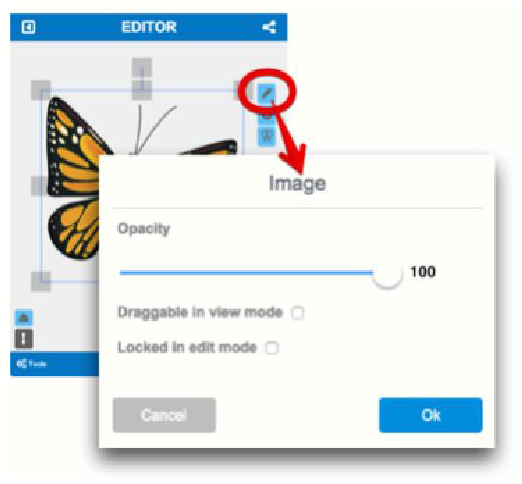
- You can control the opacity (transparence) of the se-lected image.
- With ‘Draggable in view mode’ option, the image can react to user’s mouse dragging or finger dragging.
- ‘Locked in edit mode’ option will pin the current posi-tion of the selected widget in edit mode. This will prevent the position being due to user’s mistake. This is useful when you work with bunches of widgets on the same WikiBook page(canvas).
- For Voice widget:
Voice widget has the same short cut menus as others. The dif-ference is the possible properties.
For Voice widgets, only ‘Opacity’ and ‘Locked in edit mode’ are available.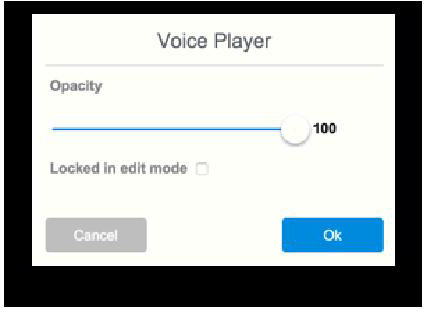
- For Digital Finger widget:
In the case of ‘Digital Finger’, you can set an action on your digital button.
** NOTE: the Digital Finger button widget is not draggable in view mode.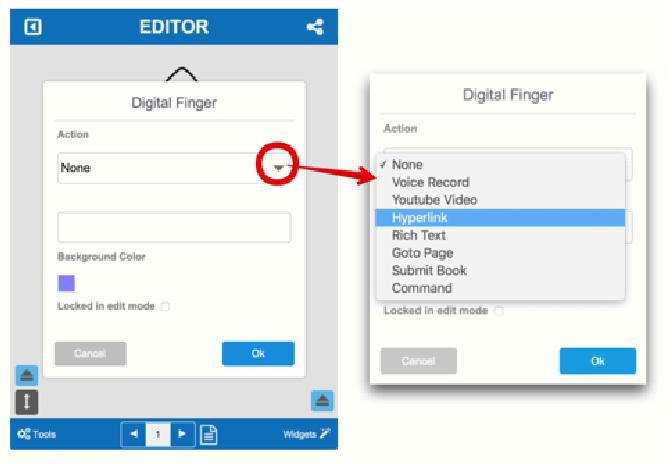
- For Hand Drawing widget:
‘Hand Drawing widget’ has the same widget properties with ‘Digital Finger button’ does. The ‘Draggable in view mode’ option is also possible.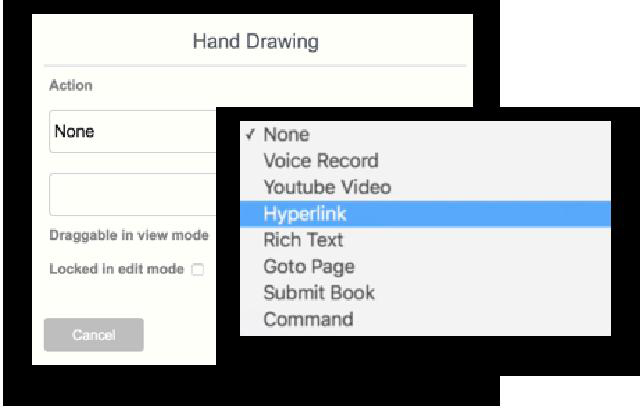
- For Multi Line Text widget:
‘Multi Line Text’ has different widget properties. Please refer 5.1 ‘Multi Line Text’ widget for the details.
B. Delete Widget short cut button
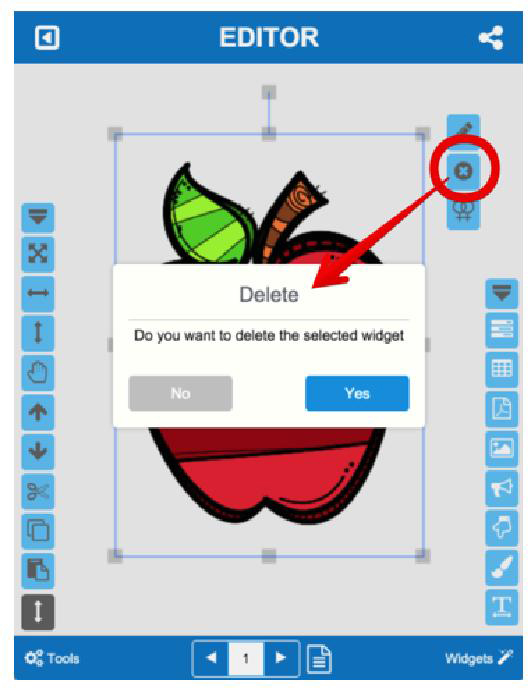
You can simply delete the selected widget with this short cut button.
C. Clone Widget short cut button
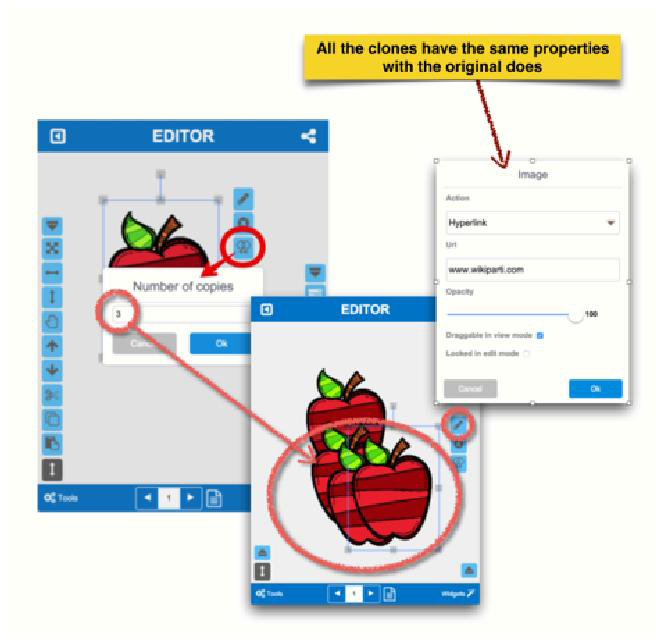
‘Cone Widget’ makes clone(s) of the selected widget. The clone widget takes the same properties from the original wid-get. So, it will trigger the same action with the original widget does.