Widgets
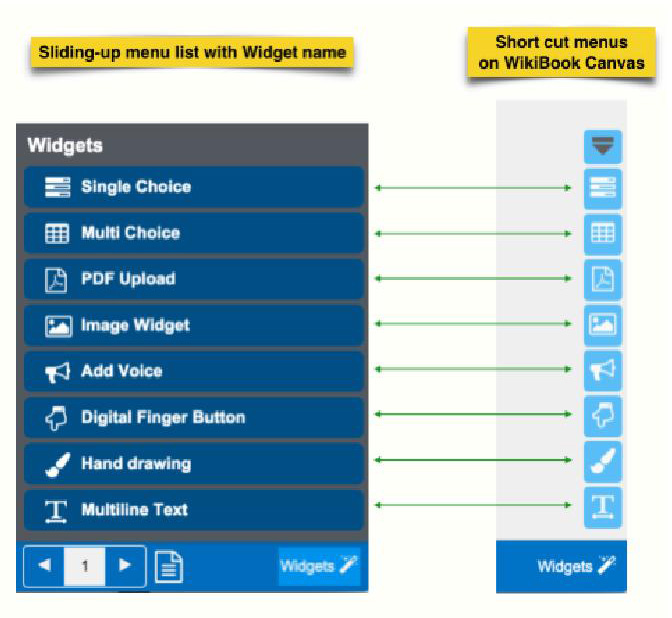
WikiParti has 8 different widgets. Each widget has it own charac-teristics and unique usage.
The short cut menu on a WikiBook canvas is identical to the slid-ing-up menu in the bottom right corner.
5.1 Multiline Text

‘Multiline Text’ is for adding text to the WikiBook canvas.
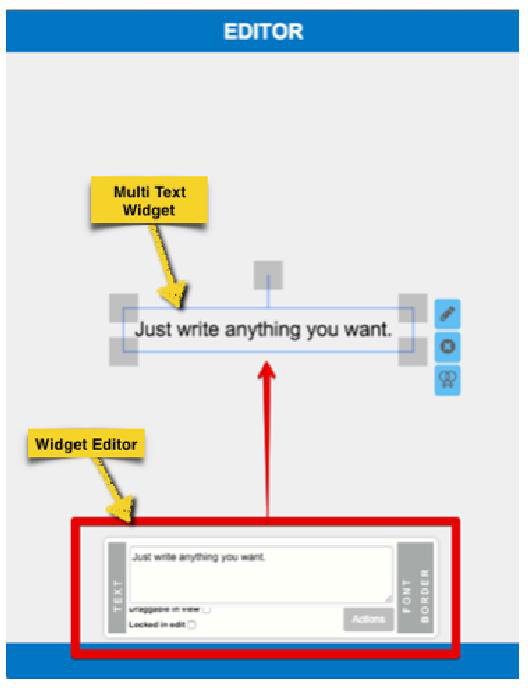
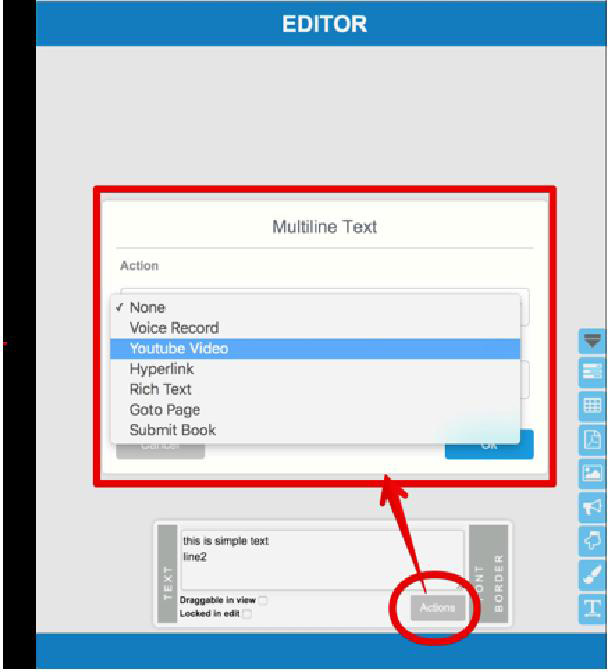
The ‘Widget Controller’ of a Multiline text is composed of three ‘pans’.
A.The first pan is ‘TEXT’ pan. It has a text input box, two options(‘Draggable in view’ and ‘Locked in edit’) and an ‘AC-TION’ setting popup dialog button.
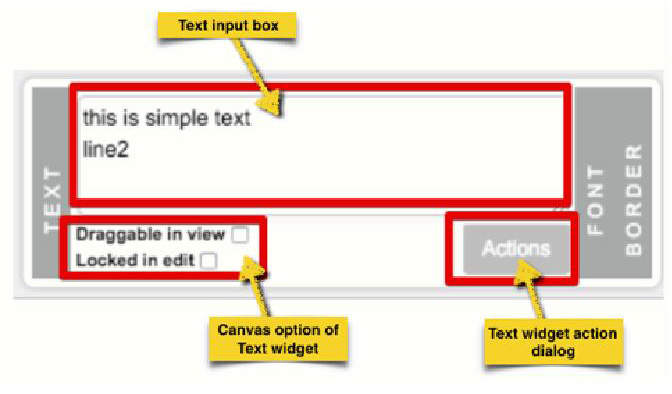
Whatever you type in the TEXT input box, the paired text widget displays the content in realtime.
The ‘Draggable in view’ option enables the text widget to be dragged by the user in view mode.
On the other hand, if ‘Locked in edit’ is checked, the position of the Multiline text widget is locked in edit mode. This is very use-ful when you want to pin the widget on a specific position of the canvas.
The ‘ACTIONS’ dialog button is used for setting an action to the text. If you set an action to the text, the text will react to the click-ing of mouse or touching with the triggering of a digital action (e.g. turn to a WikiBook page, Hyperlink, Youtube video, etc.)
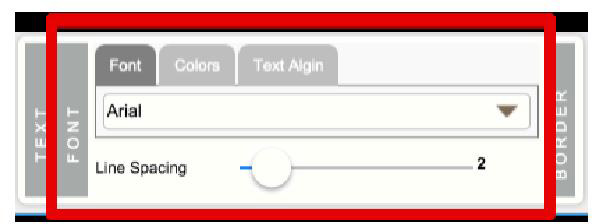
B. The second pan is ‘FONT’ pan. It has three tab menus: Font, Colors, Text Align. You can change the text font type, font col-or, background color, text align and line space.
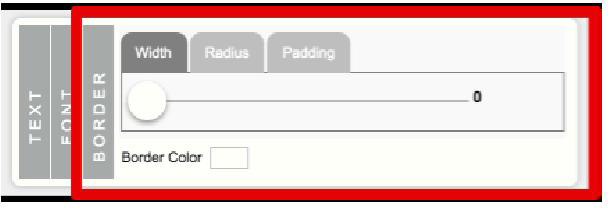
C. The third pan is ‘BOARDER’ pan. With this controller, you can modify the style of the borderline of a text book by changing the width, radius, padding and color of the selected text box.
5.2 Hand Drawing

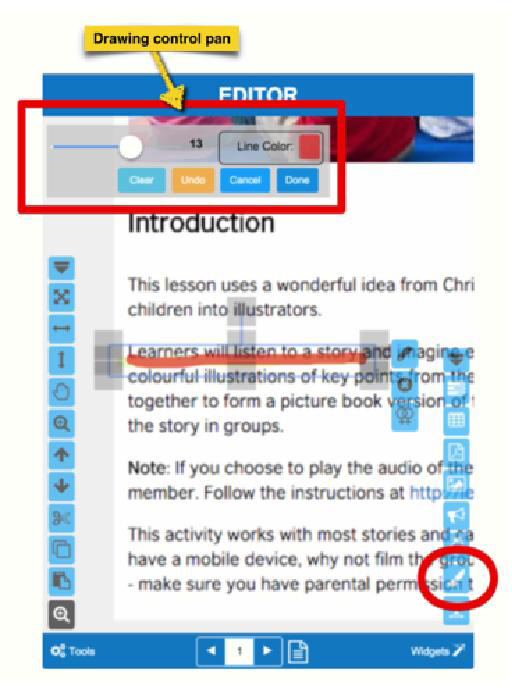
The Hand Drawing widget is for drawing or writing something simple on the canvas. When you click the short cut menu or the widget menu, drawing mode is activated. With drawing control pan, you can change the width, color and transparency of the line you are drawing. We also provide clear, undo, and cancel buttons.
5.3. Digital Finger Button

TheDigital finger button is for when you want to create an action button on section of a WikiBook page, especially on an image. When the widget activated, if you draw a looped curve on a part of canvas, it will create a clickable button.
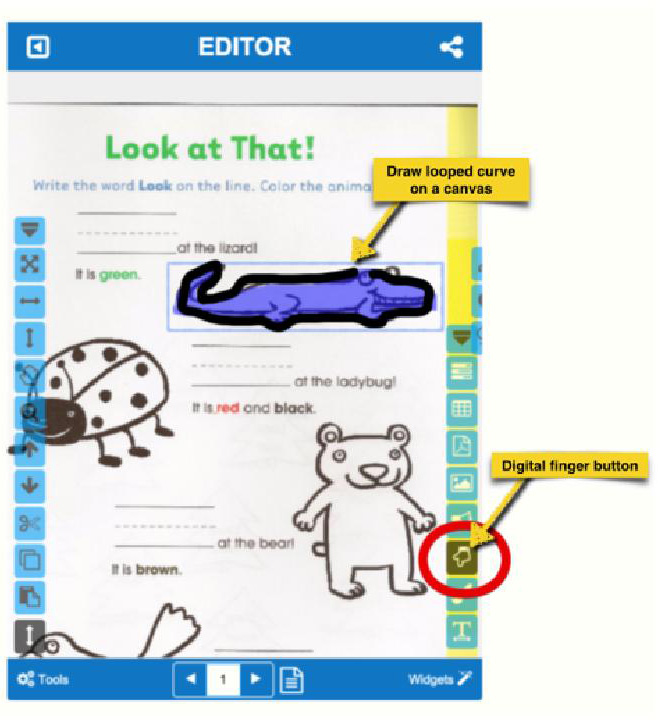
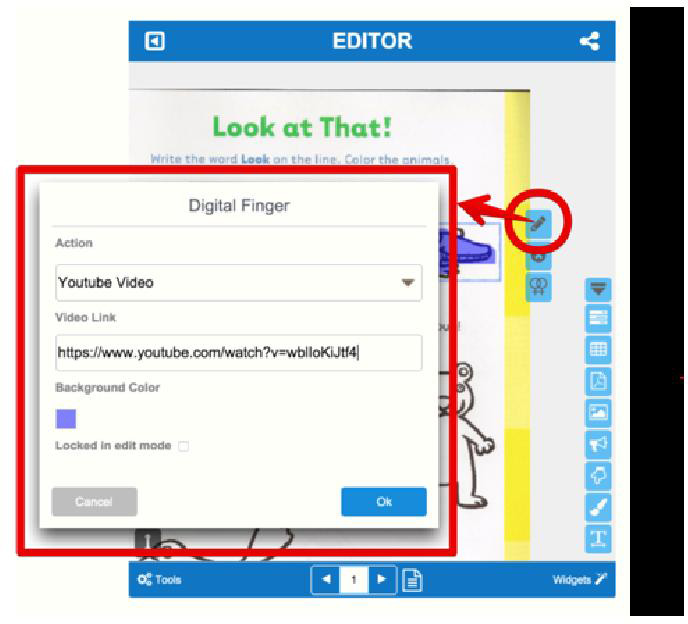
By clicking the short cut menu next to the button you made, you can add a digital action from the action dropdown list. You can also make the button invisible by changing the transparency.
5.4. Add Voice

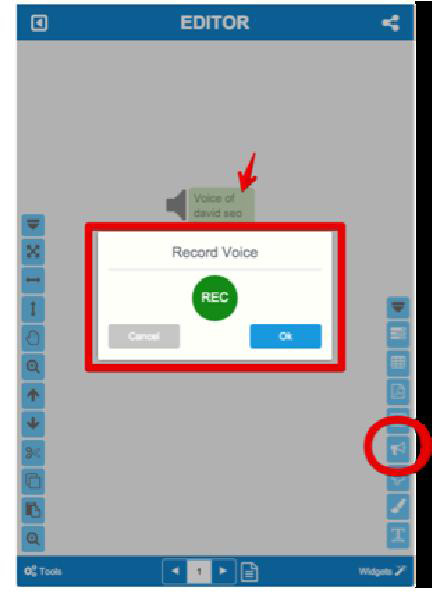
Voice widget is one of our unique features. You can add(attache) your own voice on a WikiBook canvas.
** Currently, this widget work on a standard web browser (Chrome, Firefox, Safari, etc. but not with MS-explorer).
We provide an Android version app but no iOS version yet.
The Voice widget can be also used for various purposes (e.g. a phonic book with your own voice).
5.5 Image Widget

The ‘Image widget’ enables you to upload an image to a Wiki-Book page. You can upload an image to create new WikiBook page or add an image to existing WikiBook page.
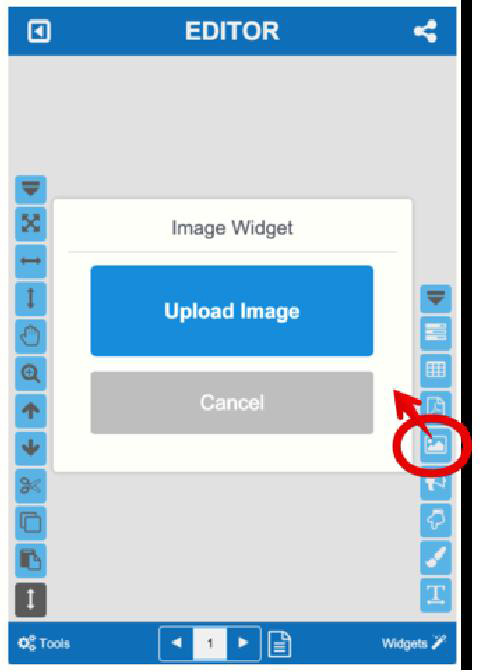
By clicking the ‘Upload Image’ button (in blue), you can upload an image from your device. If you are using a mobile device, you can use the camera function on your your mobile device.
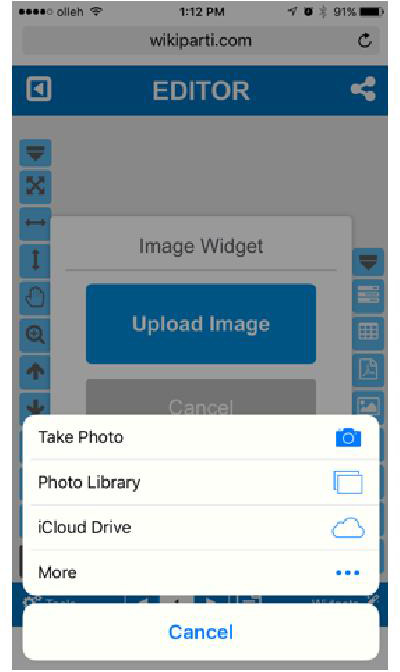
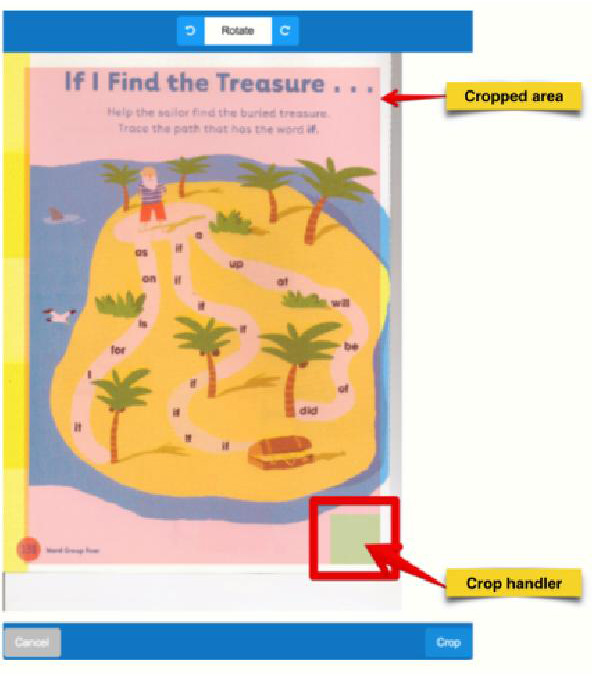
After selecting an image to upload, you will come to the cropping image page. From this page you can select the specific area you want to use from the uploaded image.
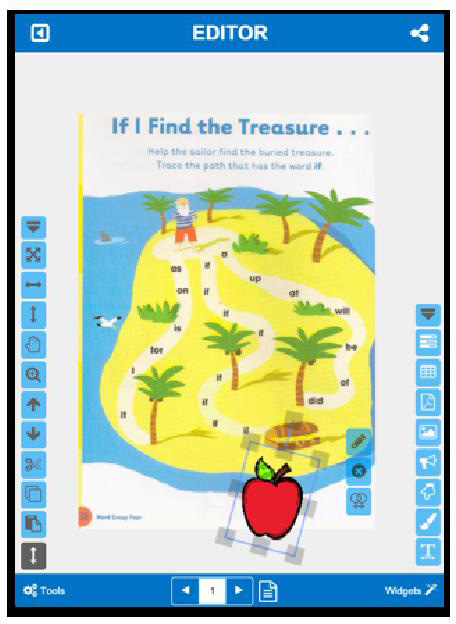
Once, you upload an image you can use it as the page image or just an object within the canvas. You can add more images at any time.
5.6. PDF Upload
If you need to upload an eBook in bulk, you can use the ‘PDF Up-load’ widget. With the ‘PDF Upload’ widget, you can upload many pages at once. This widget is very useful when you want to convert or transform your paper based content.
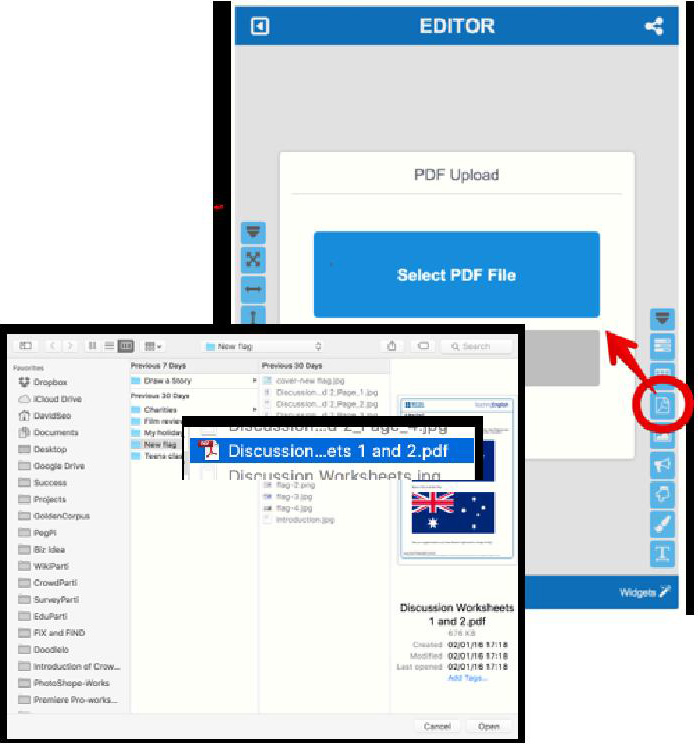
After you selecting a PDF file from your device, a process popup dialog will appear for you to decide how to upload a PDF into your WikiBook.
You can create a new WikiBook with the first option, ‘Create new WikiBook with PDF pages’.
Or, you can add the PDF pages just next to the current WikiBook page with the second option, ‘Insert PDF pages after the current page’
Or, you can also add the PDF pages next to the end page of the current WikiBook with the third option, ‘Add PDF pages at the end of this WikiBook’.
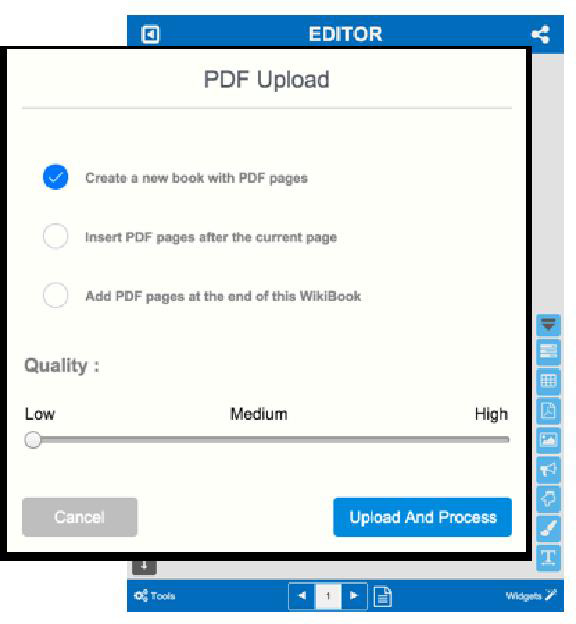
Once you have selected an uploaded method, click the ‘Upload and Process’ button.
** NOTICE:
1. You may encounter difficulties uploading your PDF due to your PDF’s internal setting or file format issues.
2. If you uploaded a large PDF file, the progress could be slow. We recommend uploading files no larger than 20 mb.
5.7. Multi Choice

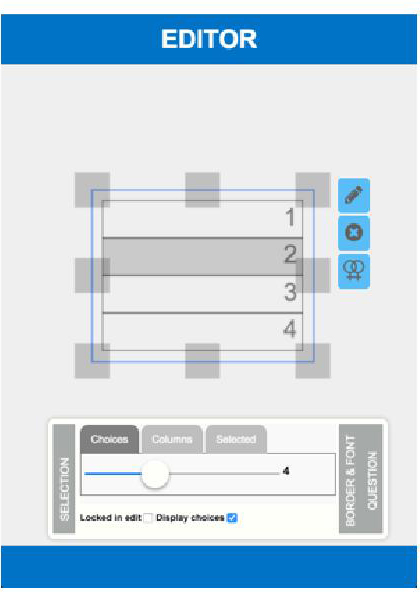
The Multi Choice Widgetis used for gathering responses (e.g. opinions or answers to a test or survey or homework) and submit-ting it to the publisher ( the WikiBook creator). The Multi choice widget allows users to select more than one choice in the given choices.
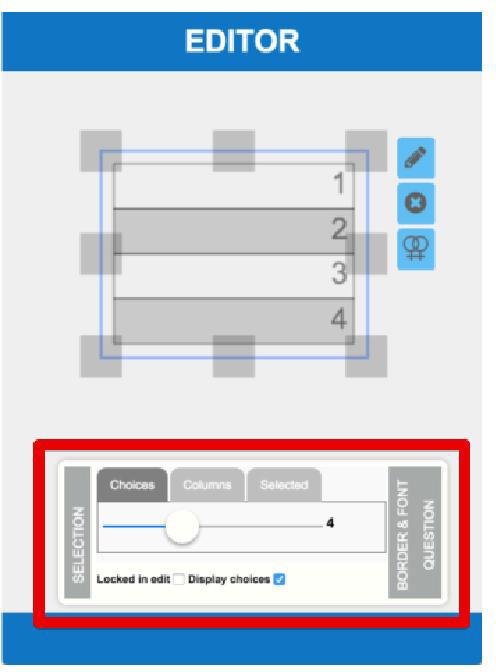
A Multi Choice Widget has a controller. The Widget Controller is activated by Edit Widget short cut button.
On the controller, you will meet the three pans ( ‘SELECTION’, ‘BORDER&FONT’, ‘QUESTION’).
A. SELECTION pan: On the first pan, ‘SELECTION’, you can control the shape of the Multi Choice widget.
- How many choices
- How many columns to show the choices
- Lock in edit mode
- Show/Hide choice number
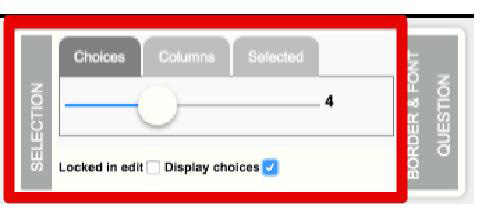
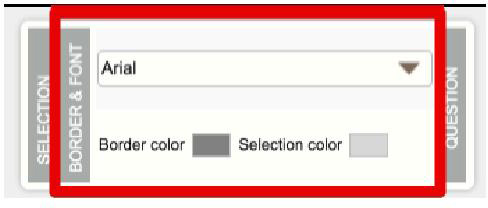
B. BORDER & FONT pan:
On the second pan, ‘BOARD&FONT’, you can change the font type, border color and selection color.
C. QUESTION pan:
On the third pan, ‘QUESTION’, you can set what this selection widget is for. This information is not visible to the respondents. Only the content author can see this information. This informa-tion is for teaching and management purposes.
5.8. Single Choice

The Single Choice widget mirrors Multi Choice widget. The only difference being Single Choice allow only one selection in the given choice(s) list.