Publish & Share
The ‘Publish & Share Management’ menu is the final stage of WikiParti workflow. It has all the functions related with publishing and sharing a WikiBook and more.
If you completed a new WikiBook (by modifying a WikiBook of the other users or through your own creativity), Now it’s time to spread your creative work into your private social network or to the public.
Not only for Publish & Share
We also provide Save / Save as / Print screen / Preview functions too.
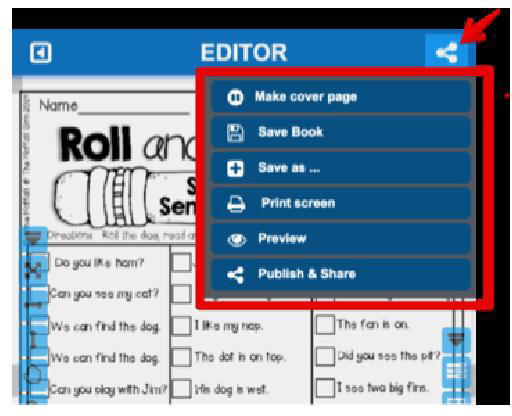
8.1. Make Cover Page
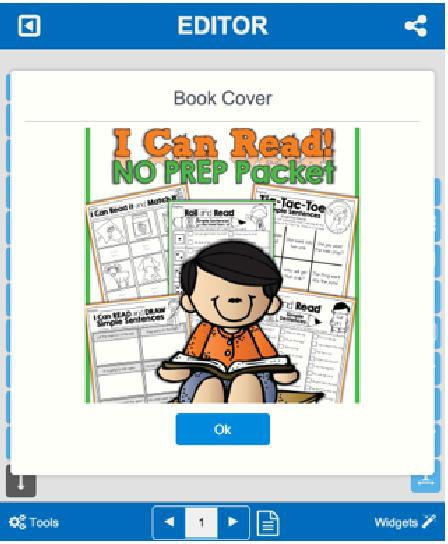
If you want to give your WikiBook a professional look, you can add a custom book cover with this function. The operation se-quence is exactly same with that of image widget. The ONLY dif-ference is, in the ‘Make Cover Page’, you can not change the size of the image cropper. For book covers, we allow only 1:1 ratio im-age.
8.2. Save Book
If you do not want to publish or share yourcurrent edition for now, you can save it for later use.
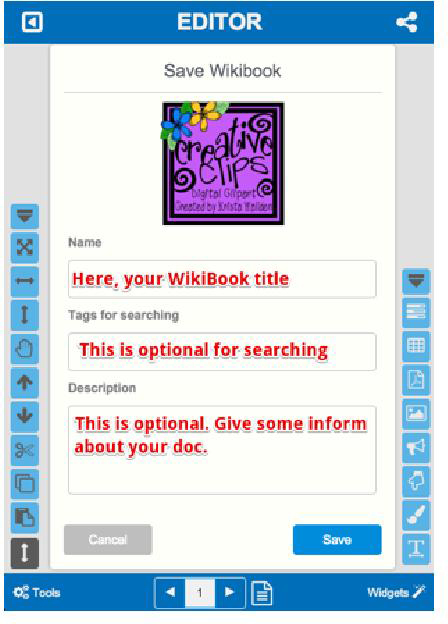
When you save your edition, we recommend you to set the page cover first, otherwise the App will take the current page you opened as the default book cover. Of course you can change it anytime before you publish it. And the‘Name’ field is mandatory. The other two input fields are optional.
8.3. Save As
‘Save As’ is for making a copy of the current WikiBook and saving it in your WikiBook inventory for later use.
You will see the exactly same UI with ‘Save’.

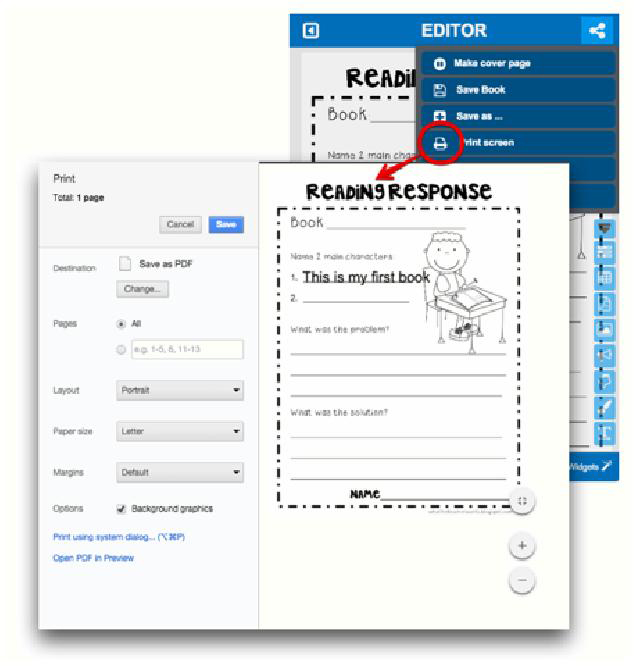
8.4. Print Screen
The ‘Print Screen’ allows you to print out the current page. At the moment, this function uses the current browser’s print utility. So, the detailed functions of ‘Print Screen’ is dependent on the browser you are working on now.
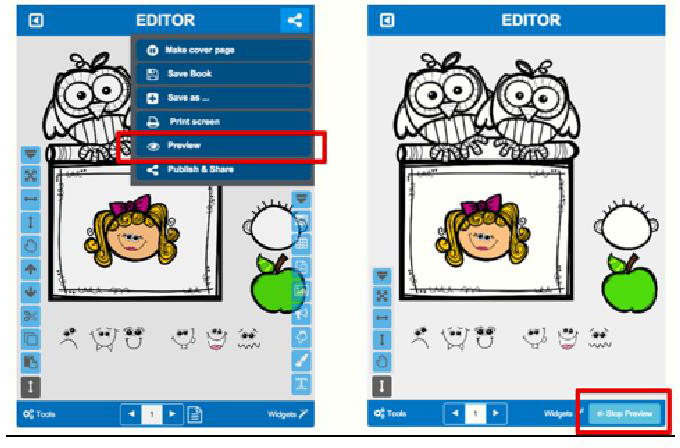
8.5. Preview
Before you publish your new edit, if you want to check how the WikiBook appears, you can use the ‘preview’ function. You can turn off ‘preview mode’ by clicking the ‘Stop Preview’ buttonin the bottom right corner.
8.6. Publish & Share
Are you ready to share your creative work? Then it’s time to go to the ‘Publish & Share’ page.
Through this function, you can publish your work (a new Wiki-Book) to the public or share with your private social network.
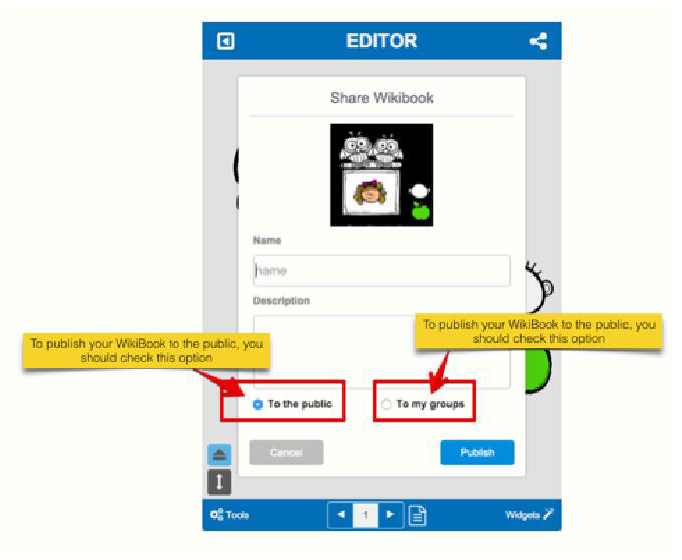
A.To the public
Publishingyour new WikiBook to the public is very simple. After deciding on a name for your WikiBook, just select the ‘to the pub-lic’ option and click the ‘Publish’ button. Then you will see a pop-up dialog having the ‘Share URL’ for spreading your WikiBook to the world.
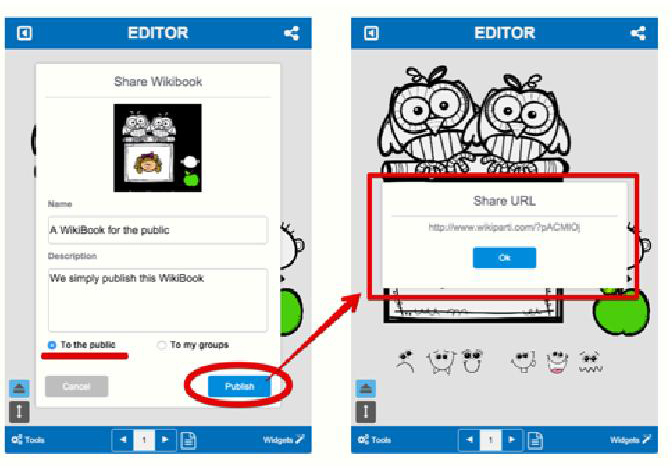
B. To my group
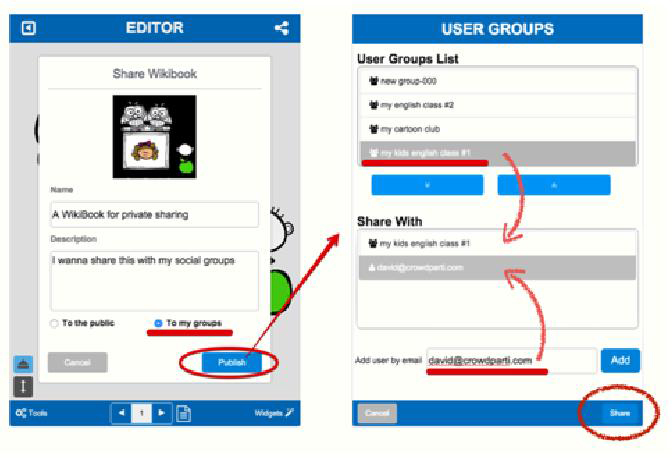
If you want to share your new WikiBook with your private social group, you should select ‘To my groups’ option. Unlike ‘to the public’, when you click ‘Publish’ button on ‘To my group’, you will meet a ‘USER GROUPS’ setting page. On this page, you can select the people you want to share your WikiBook with.